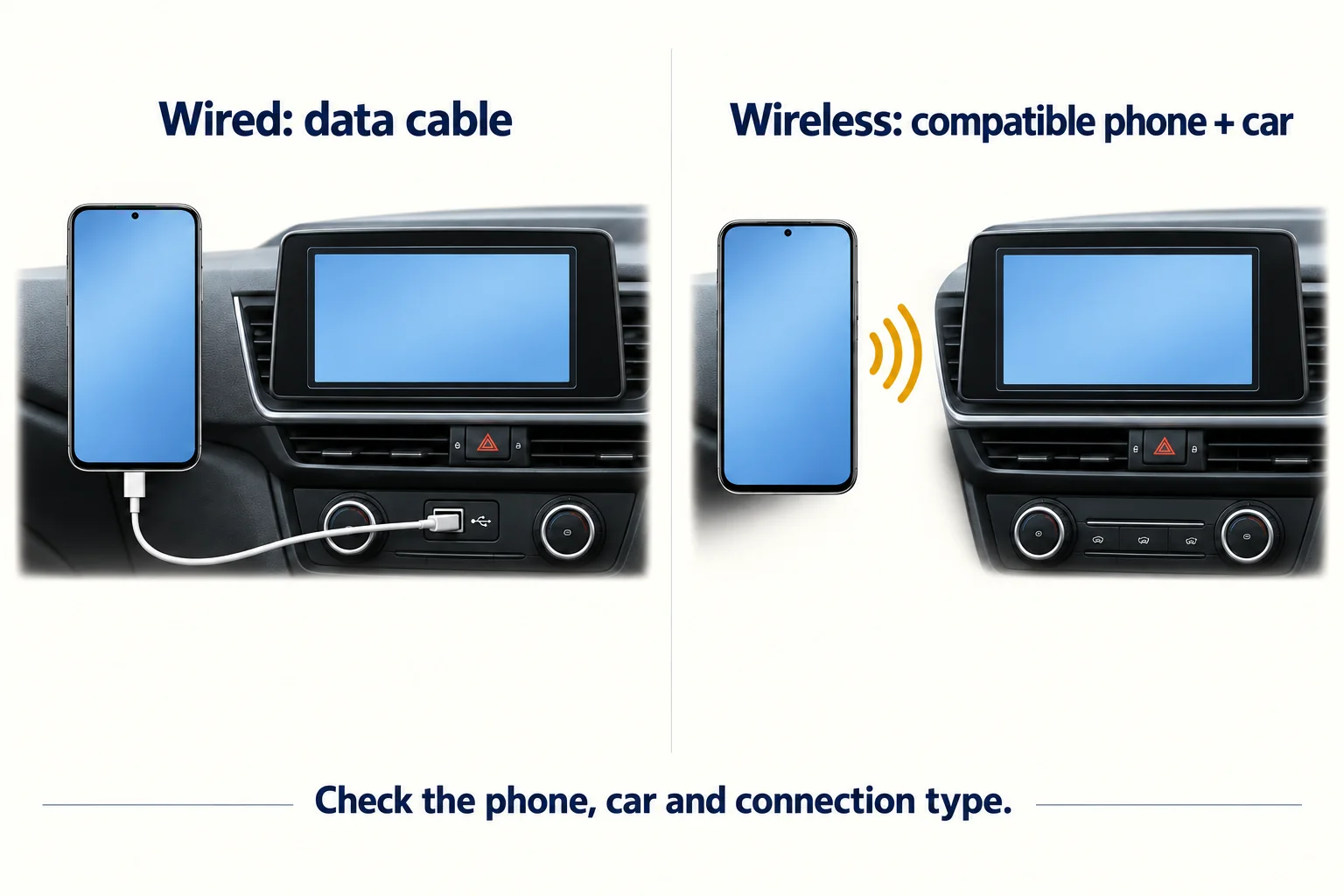
To use Apple CarPlay, connect a compatible iPhone to a car that supports CarPlay, using its designated USB port or its supported wireless connection. Android Auto is the equivalent route for a compatible Android phone. Set everything up while safely parked: having Bluetooth or a USB socket does not, by itself, prove that your car supports either system.

Start with three questions: which phone do you have, does this exact car support that platform, and is its connection wired, wireless or both? Answering those first prevents a cable problem being mistaken for a missing feature. This guide uses current Apple and Google documentation; it is not a hands-on test of every infotainment system.
Check compatibility before changing settings
Use the handbook for the car’s model year and installed infotainment system, or ask the manufacturer to confirm the equipment fitted to the specific vehicle. A model name in an advert is less useful than confirmation that your phone connects to that actual car. If connectivity matters to a purchase, include a demonstration among the requirements in your next-car shortlist.
| Check | Apple CarPlay | Android Auto |
|---|---|---|
| Phone | A compatible iPhone, with its software updated. | Google’s current requirements specify Android 11 or later and an active data plan. Android Go edition is excluded. |
| Car or receiver | Must support CarPlay. | Must support Android Auto. |
| Wired connection | The correct USB port and a suitable cable for the iPhone connector. | A compatible USB connection and a good data cable. |
| Wireless connection | Wireless CarPlay support must be confirmed separately. | The car must support wireless Android Auto; the phone also needs 5 GHz Wi-Fi support. |
Check Google’s current minimum requirements rather than an old compatibility list. Android Auto is integrated into supported phones, so an absent standalone app icon does not necessarily mean it is missing. Apple distinguishes CarPlay from ordinary Bluetooth and USB audio in its vehicle connection guide; CarPlay is not supported on iPad.
Android Auto and a car with Google built in are different arrangements. In the latter, Google apps and services are installed in the vehicle itself. Finding Google Maps on the dashboard therefore does not establish Android Auto compatibility. This article covers phone connection, rather than setting up the car’s own Google account or CarPlay Ultra’s additional vehicle integration.
How to set up Apple CarPlay
With the car safely parked, switch on its infotainment system and enable Siri on the iPhone. Use the vehicle’s instructions for the correct power mode and connection controls.
Connect by cable
- Find the USB port identified for phone integration. Apple notes that it may carry a smartphone or CarPlay symbol.
- Connect the iPhone using a cable that fits both ends. Choose the appropriate USB-C or Lightning connection for your phone; do not assume every iPhone uses the same connector.
- Read and complete the prompts on the phone and vehicle. If the car supports both connection methods, the iPhone may offer wireless connection for subsequent journeys.
Apple’s connection instructions cover these alternatives. If CarPlay does not open, look for its logo on the car display. A phone charging successfully is not a sufficient check that CarPlay has connected.
Connect wirelessly
Put a compatible car into its wireless or Bluetooth pairing mode as described in its handbook. Apple also describes holding the steering-wheel voice-command button on supported vehicles. On the iPhone, open Settings → General → CarPlay and select the car under Available Cars. Keep Wi-Fi and Bluetooth enabled. Some vehicles first establish wireless CarPlay through a USB connection, so follow the route specified for yours.
The controls and pairing prompts vary. Use Apple’s CarPlay setup guide alongside the car’s instructions rather than looking for an identical menu on every dashboard.
How to set up Android Auto
Google’s setup instructions separate USB and wireless connections. Allow time for any update request before you intend to leave.
- Prepare: park safely, switch on the infotainment system and check that the phone has a mobile data connection.
- For USB: connect the phone to the car’s compatible USB port, then complete the displayed setup prompts.
- For wireless: enable Bluetooth, Wi-Fi and Location Services on the phone. Pair it with the car through Bluetooth, using the vehicle’s pairing instructions.
- Confirm: Android Auto should start after pairing. If it does not, follow the car’s prompts or select Android Auto on its display.
Google describes a steering-wheel voice-button shortcut for opening pairing on compatible vehicles, but directs you to the manufacturer if that menu does not appear. Avoid repeatedly holding unrelated buttons or changing advanced settings to imitate another car’s procedure.
Find your apps and controls before setting off
CarPlay’s Dashboard groups useful information such as navigation and audio; CarPlay Home shows the available apps. Depending on the vehicle, you operate it through a touchscreen, rotary controller or touchpad. Apple’s guide to built-in controls explains how to switch views and return to the vehicle’s own screen. Its CarPlay introduction includes an official dashboard image for orientation.
Android Auto’s official screen guide shows the App Launcher, a microphone control, recent apps and the status area. The Dashboard button returns from the app grid to the dashboard. Use those official images to recognise the controls; their placement and appearance need not match every screen size or software release.
Neither system displays every app installed on the phone. For Android Auto, check Google’s compatible-app guidance before treating a missing app as a connection fault. A working map with one absent music app calls for a different investigation from a display that never starts Android Auto.
For CarPlay, arrange supported apps on the iPhone under Settings → General → CarPlay → your car → Customise. Apple’s music and podcasts guide also explains downloading audio before travelling. Preparing a playlist and checking app subscriptions at home is more useful than discovering a sign-in or download requirement in a car park.
Choose the connection check that matches the problem
Open the relevant section while parked. These checks narrow the next step; they do not certify that a particular phone and car combination will work.
The phone charges, but the dashboard does not connect
First confirm that the car supports your platform and that this is its designated connection port. Then try a known suitable data cable. For Android Auto, Google recommends a cable shorter than one metre without a USB hub or extension. Charging alone does not settle those checks.
A cable connection works, but wireless does not
Confirm that the installed system supports the wireless version of the same platform. For wireless CarPlay, check that Bluetooth and Wi-Fi are enabled and that the CarPlay network has Auto-Join enabled. For Android Auto, check the wireless phone requirements and repeat the manufacturer’s initial Bluetooth-pairing process.
CarPlay used to work and has stopped
Work through one change at a time: try another suitable cable or supported port, restart the phone and car, and check that Siri is enabled. Apple’s further checks include CarPlay restrictions and the vehicle’s firmware. If you choose Forget This Car under the iPhone’s CarPlay settings, expect to set the connection up again.
Android Auto used to work and has stopped
Check the cable, confirm Android Auto is enabled in the infotainment system, and restart that system according to its manual. For an aftermarket receiver, check its manufacturer’s firmware guidance. Note the phone model, Android version, receiver or vehicle details, and whether USB or wireless fails before contacting support.
These routes draw on Apple’s CarPlay troubleshooting and Google’s connection checks. Avoid a factory reset as the first experiment: establish the exact fault and follow the relevant manufacturer’s guidance.
Finish the setup before the journey
While still parked, open the navigation app, enter the destination, check that audio is audible and identify the vehicle’s voice control. Review any requested contact or notification access before approving it, particularly in a shared or hired vehicle. Permission screens are not identical across phones and cars.
Set up the wider journey using our road-trip planning guide. If the connection subsequently drops, wait until safely parked to investigate rather than picking up the phone in traffic.
GOV.UK’s phone-use guidance states that holding and using a phone while driving is illegal, including while stopped at lights or in a queue. Hands-free access does not remove the obligation to stay in control. An integrated screen or voice assistant is not permission to become distracted.
Documentation and official screen examples checked on 16 October 2026. Menu wording, device requirements and feature availability can change; consult the linked platform guidance and the manual for your exact vehicle.
The conversation